
All electronic devices degrade in performance over time. The same is the case with the iPhone despite its hardware and software components being of good quality. When your iPhone is acting very slow, there can be many factors behind the scenes. Some prominent ones are the iOS version and the iPhone model.
With every new release of the iOS version and the iPhone model, older versions of iPhones tend to be slow or laggy. It also depends on how long it’s been since you got your iPhone and how you use it.
Other factors are lack of storage, a faulty battery, suspicious apps, and even potential viruses. Still, it’s pretty easy to make your iPhone perform faster using several methods.
How to Speed Up an iPhone?
1.Turn Off Background App Refresh
Merely closing apps is not enough to lower your phone’s CPU usage. Several apps continue running in the background, consuming resources to refresh the information and sync data. If there are a lot of apps refreshing in the background, it can ultimately slow down your phone.
So, you can simply turn this feature off through the settings. Doing so will only update and refresh data when you manually open an app instead of it refreshing in the background.
- Go to your iPhone’s settings.
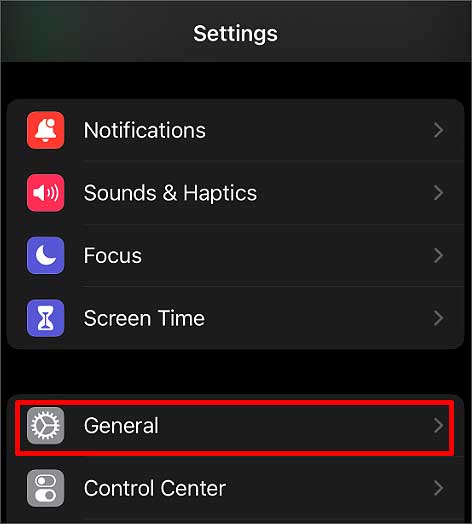
- Then, tap on General.
2.Change Transparency and Motion Settings
Your phone’s user interface also takes a toll on the resources. So, it’s helpful to minimize the transparency and motion settings. Here’s what you can do.
- Tap on Settings and go to Accessibility.
- Select Display and text size.

- Slide the toggle for Reduce Transparency.

- For motion settings, go to Accessibility and then select Motion.
- Turn on Reduce Motion.

3.Free Up Storage
Lack of storage is another reason why your phone can be slow. This is because full storage doesn’t allow for the memory to be flexible. Similarly, the OS also won’t find much room to save cache data, which can affect the performance of the apps.

This is true even if you have fewer apps. Even though they may be of small size when you first install them, your user data and cache data make the app size bigger later on. So, it’s important to free up some storage space on your phone.
Delete all the apps that you don’t want anymore. Additionally, some suspicious apps could be the reason behind your phone being slow. Such apps can have bugs or corrupted files, making your phone laggy. So, we recommend making the most use of the built-in apps that come with the iPhone.
4.Update your iOS Version
The iOS version makes a huge difference in how your phone performs. If you’re still using a relatively older version of iOS, it’s best to update it right away. Not only will your phone become faster, but other factors will also become better due to the bug fixes in the new OS.

On the contrary, if you’re experiencing a slow iPhone after just updating to the latest iOS, you can try downgrading to the previous version. But it’s worth noting that you only get two weeks time to downgrade the iOS after updating to a newer one.
5.Disable Automatic Downloads
We previously mentioned that your phone could be slow if there are a lot of processes in the background. One of the processes can also be pending downloads on the App Store.
Even when you’re not downloading items yourself, there can be automatic downloads or purchases in the background. Here’s how you can prevent them from happening:
- Tap on Settings and then go to the App Store.
- In the section that says Automatic downloads, turn off options for App Downloads and App Updates.

6.Disable Settings for Siri
Siri can also take up a considerable amount of resources on your phone. So, it’s best to turn off a few of its settings. For instance, even the voice command “Hey Siri” can make your phone slow. Here’s how you can turn these off:
- Go to Settings and then tap on Accessibility.
- Select Siri.

- Turn off the option that says Always Listen for “Hey Siri.”
-

7.Clear Browser History
Our stored browser cache data can also eventually slow down our phone due to bugs and corrupted files. So, clearing this data is one way to speed up your iPhone. If your primary browser is Safari, here’s how you can clear its data.
- Go to Settings.
- Tap on Safari.

- Select the Clear history and website data option.

But if you often use Chrome, here’s how you can remove its history:
- Open the Chrome browser.
- Tap on the three dots in the bottom-right corner.

- Tap on History.

- Select the Clear Browsing Data option highlighted in red.

8.Factory Reset iPhone
If most solutions are still not making your iPhone faster, a fail-proof remedy is to factory reset it.
When you completely wipe all the data, your phone will automatically perform better. Here’s how you can factory reset your iPhone:
Note: Since you’ll lose all your data during the factory reset process, we recommend backing up your data.
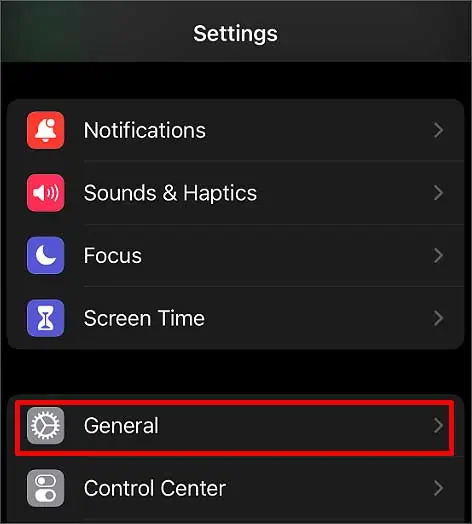
- Go to Settings and then tap on General.
- Select the Transfer or Reset iPhone option

- Tap on Erase All Content and Settings.


If you don’t want to fully reset your phone, you can only select the Reset All Settings option.